How to bypass Windows 7, vista and xp administrator password. Summary: Are you trying to bypass Windows 7,vista and xp password? This post shows you 3 top ways to bypass Windows 7 password and other windows ( xp/vista/2. Three Methods for bypassing windows password: Note: We cannot bypass windows 7 and vista password on safe mode, because the administrator account of windows 7 and vista is inactive by default. Method 1: Bypass (Remove) Windows 7, vista and xp password. If lost windows 7 password or other version windows password of your computer, removing the lost password is a quick and easy way to regain access to your windows and go on with your work.
Download Spower Windows Password Reset Professional and install it. Create a Windows password reset USB or CD/DVD disk. If want to create CD/DVD password disk, choose . Screenshot as follow: Set the locked computer to boot from CD/DVD- ROM or USB drive. Boot computer from Windows password reset disk.
Insert the Windows password reset disk to the computer and then restart computer. Remove (bypass) the password of selected account. Select a Windows system from list box. Select an account from list.
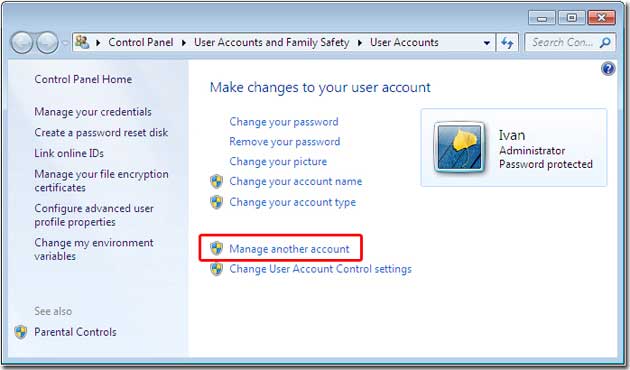
After restarting computer, you can login Windows with administrator account. Now you have bypassed (remove) windows 7 , vista and xp password. Method 2: Bypass Windows 7, vista and xp password by creating a new account. This method describes how to create a new account offline (offline means you do not need to login windows), login with new account, and delete the account. So you can bypass Windows password without changing current account and password. Follow the steps below to bypass password windows 7, vista and xp password: Step 1: Download Spower Windows Password Reset Special and install it.
/about/Useraccount-56a2caf93df78cf7727a0083.jpg "Create New Windows User Vista")
Spower Windows Password Reset Special can be installed in Windows 2. Note: step 3, step 4 and step 5 ware done on the computer which you want to bypass. Step 3: Set the computer to boot from CD/DVD- ROM or USB disk. To set computer to boot from CD/DVD- ROM, refer to How to set computer to boot from CD/DVD- ROM for step by step guide. To set computer to boot from USB drive, refer to How to set computer to boot from USB drive for step by step guide. Step 4: Boot computer from password bypass disk. After setting the locked computer to boot from CD/DVD- ROM or USB drive, insert Windows password bypass disk to computer, and restart the computer.
Click Reboot button to reboot computer. After rebooting, you can login with new account.
Now you have bypassed the Windows password. So we can easily bypass the windows password by this leak. Now we try to login Windows with administrator account. When power on computer, press F8 repeatedly until the Windows Advanced Options Menu screen appears. Select Safe Mode to boot windows to safe mode. Click Administrator account to login. You have bypassed Windows xp password.

Tip: We can also use this method to bypass the login password in normal mode – Boot Windows to welcome screen, double press CTRL+ALT+DEL to bring out the classic login screen, and then input: administrator and blank password. If the administrator account has been set a password, we cannot use the method to bypass the windows xp password. We should use Method 1 or Method 2..
A Bootable USB: Freeware to Create Bootable USB Drive to Install Windows Vista and Later. Imagine a situation where you need to install Windows Vista, Windows 7 or. How to bypass Windows 7, vista and xp administrator password. Summary: Are you trying to bypass Windows 7,vista and xp password? This post shows you 3 top ways to.
While I do agree that creating a Windows PE disc is not as easy as creating an Vista recovery disc. Windows Vista introduced a number of new I/O functions to the Microsoft Windows line of operating systems. They are intended to shorten the time taken to boot the.





/http%3A%2F%2Fpad1.whstatic.com%2Fimages%2Fthumb%2F9%2F99%2FCreate-a-Bootable-Windows-7-or-Vista-USB-Drive-Step-13-Version-2.jpg%2Faid711829-v4-728px-Create-a-Bootable-Windows-7-or-Vista-USB-Drive-Step-13-Version-2.jpg)
/https%3A%2F%2Ftr1.cbsistatic.com%2Fhub%2Fi%2F2017%2F04%2F11%2F7983ac85-ee80-4475-b999-d126c6736bf2%2Fvista.jpg)
/https%3A%2F%2Fhttp://localhost/%2Fimages%2FI%2F41ZEQQKYFYL._SR600%2C315_PIWhiteStrip%2CBottomLeft%2C0%2C35_PIStarRatingTHREE%2CBottomLeft%2C360%2C-6_SR600%2C315_SCLZZZZZZZ_.jpg)
/http%3A%2F%2Fits.uiowa.edu%2Fsites%2Fits.uiowa.edu%2Ffiles%2Fstyles%2Flarge%2Fpublic%2FSAS%20Install.png%3Fitok%3Dsg1gLf9e)